Storage drivers
Before talking about volumes, it is important to understand a little about how images work, since a container only exists from an image.
The storage driver is what allows data to be written to the container's write
layer. The key point is: when the container is removed, everything that was
only in that write layer is lost. Today the default driver on Linux is
overlay2.
Images and layers
A Docker image is made of several layers, and every Dockerfile instruction that changes the filesystem produces a layer.
Look at the example Dockerfile:
FROM alpine:3.20

COPY entrypoint.sh /root/entrypoint.sh

RUN mkdir -p /root/files/readme

CMD ["cat", "/root/entrypoint.sh"]
FROM brings in the layers of the base image; COPY produces a layer with the
added file; RUN produces another layer with the created directory.
(Instructions that do not touch the filesystem, like CMD and ENV, only adjust
metadata.)
These layers are stacked and are read-only. When a container starts, Docker adds a thin write layer on top. Any file you change inside the container ends up in that write layer, using copy-on-write.
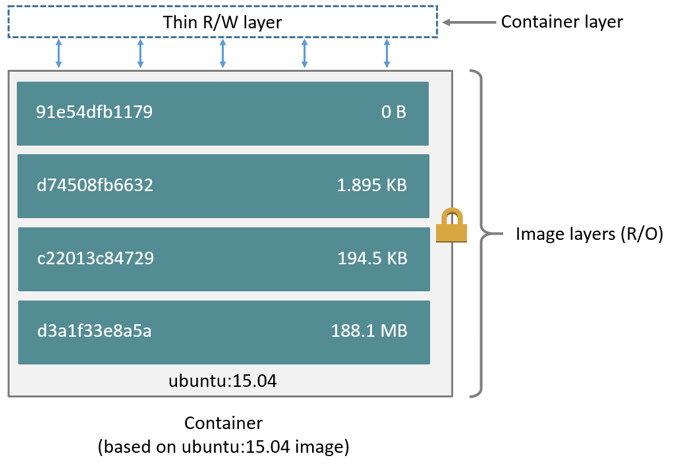
Image from the official documentation: https://docs.docker.com/storage/storagedriver/images/container-layers.jpg

Containers and layers
The main difference between a container and an image is exactly that write layer on top.
When the container is removed, the write layer goes with it — the lower layers remain. That is why you should be very careful with databases and any data you cannot afford to lose: in a container's default model, you lose everything. To persist data, use volumes (next).
The good side of stacking is reuse: several images and containers share the same base layers, saving disk and download.
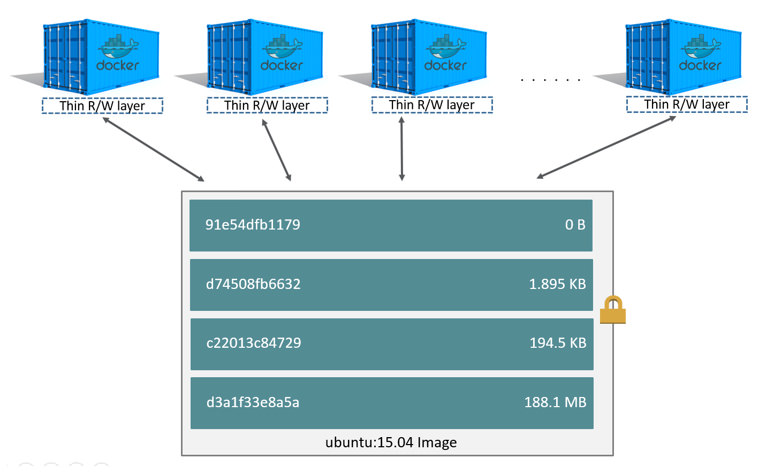
Image from the official documentation: https://docs.docker.com/storage/storagedriver/images/sharing-layers.jpg

Using volumes
There are two ways to bring in data that survives the container:
1. Map a host directory (bind mount)
You pick a host path and mount it inside the container:
docker container run --rm \
  --mount type=bind,source=/tmp,target=/root/tmp \
  alpine /bin/sh -c 'echo I am container $(hostname) > /root/tmp/my-dear-container'
2. Use a named volume, managed by Docker
docker volume create data
docker container run --rm \
  --mount type=volume,source=data,target=/root/data \
  alpine /bin/sh -c 'echo persisted > /root/data/file'
The content of the data volume stays available for the next container that
mounts it, even after this one is removed.